01 · Off-Center Tracking
Keep an off-center speaker in frame
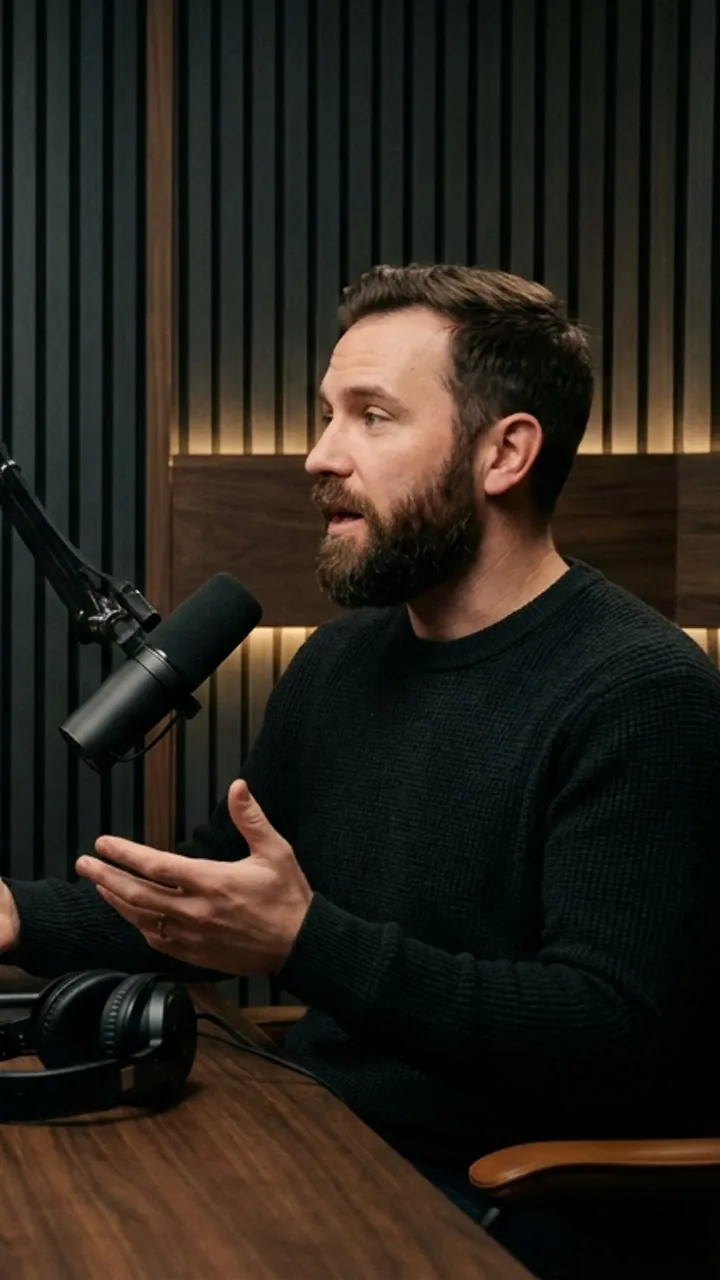
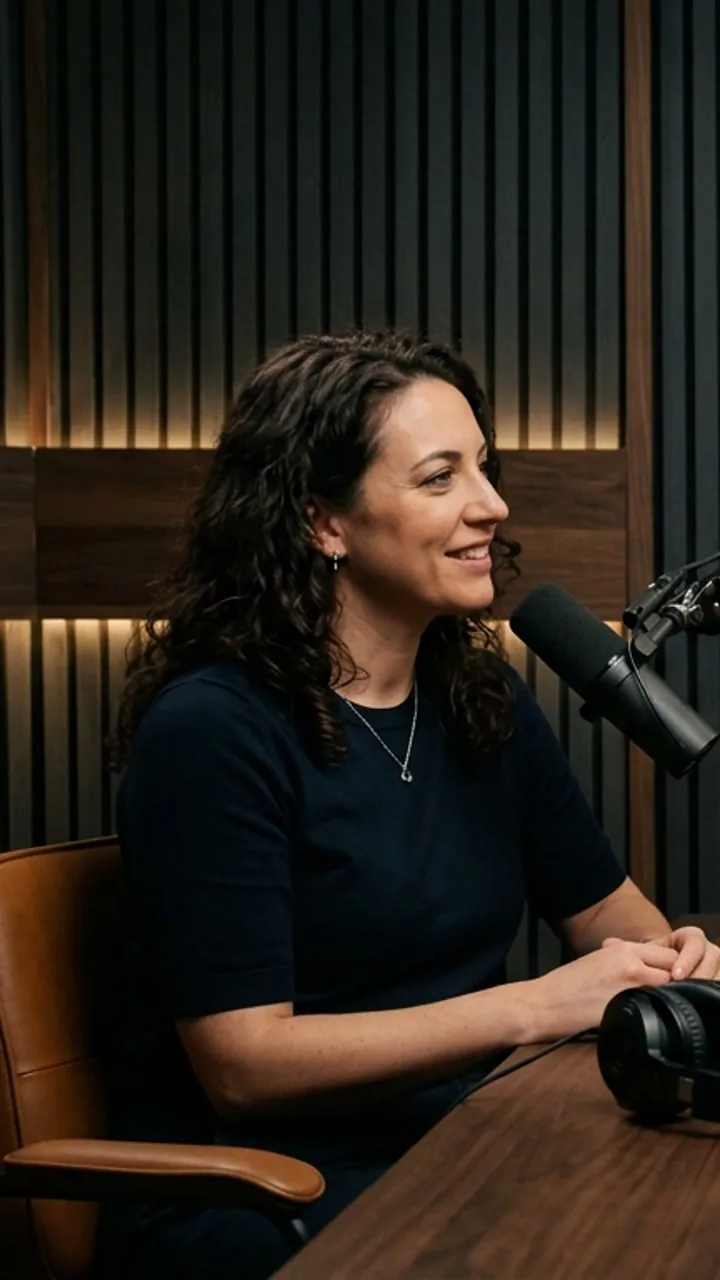
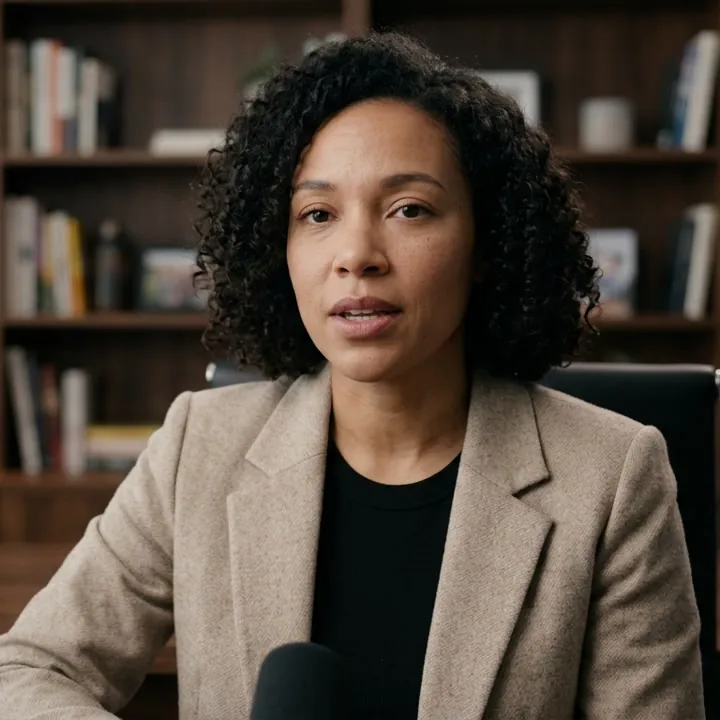
Compare the marked crop with the portrait still. The face stays in view while the outer edges of the desk fall outside the frame.
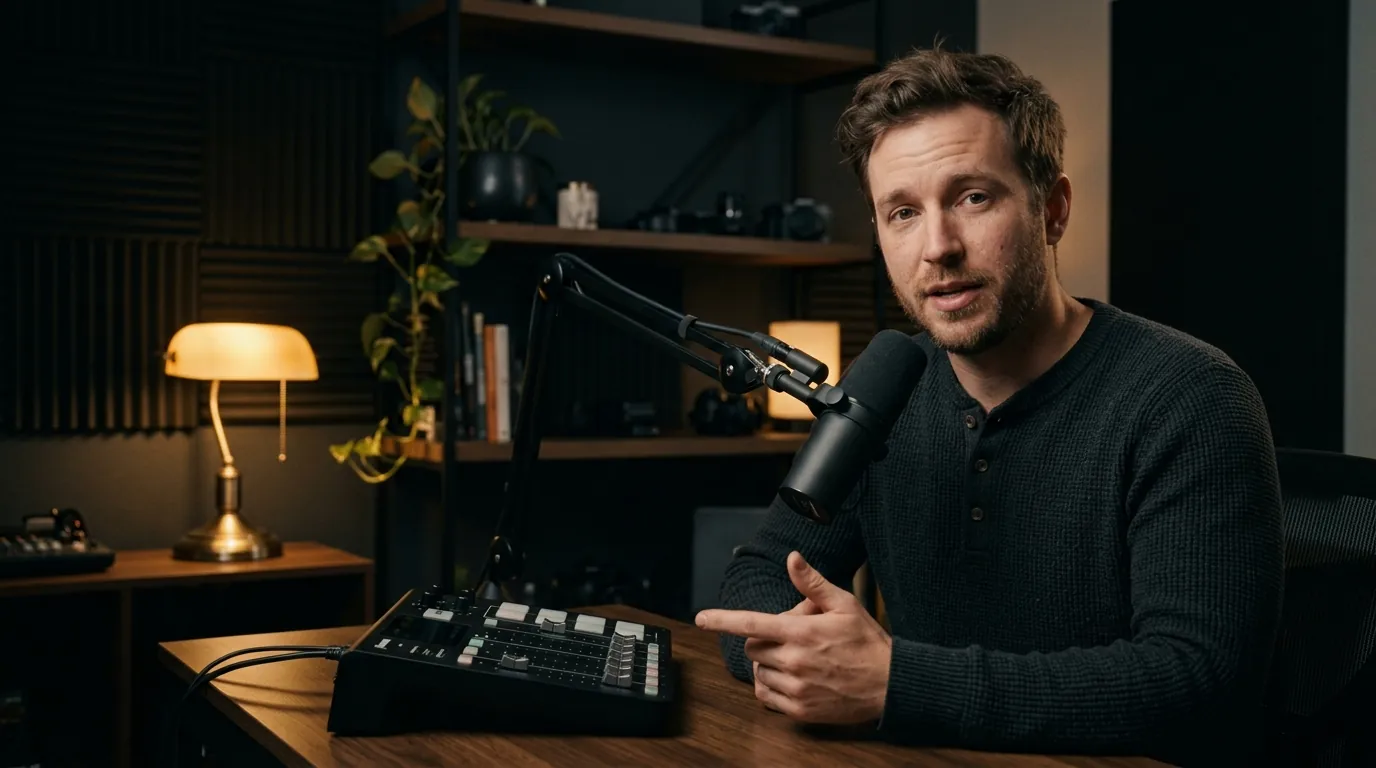
Extract highlights from a long recording and change aspect ratio video clips for each platform. Turn wide footage into vertical video (9:16) for Shorts, TikTok or Reels, or 1:1 square for feed posts. Watch the interview comparison to see the framing in action.
Preview a public video of any length, then select up to 60 minutes to clip.
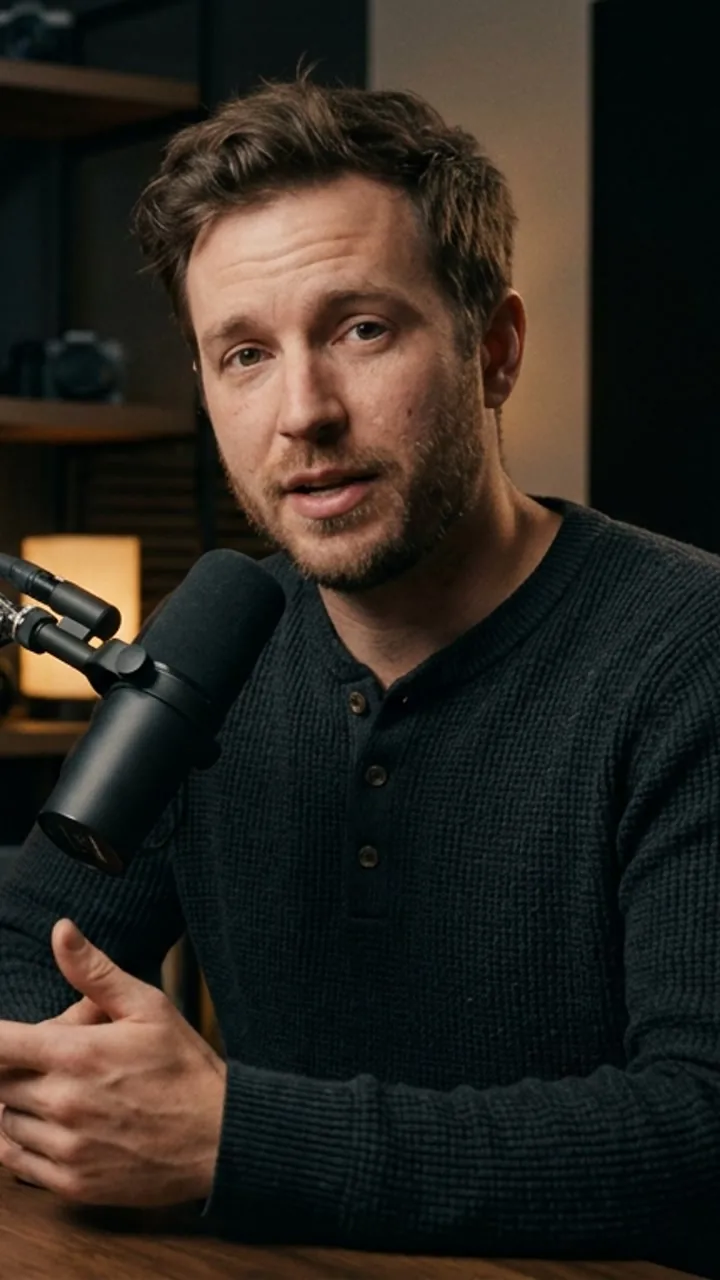
In this still, the vertical frame is offset to keep the presenter in view.
Choose the aspect ratio that matches your destination platform. Exports automatically prioritize 1080p HD when your source video supports it, with no watermark. The last column shows which ratios you can export directly.
| Aspect Ratio | Target output (1080p priority) | Primary Platforms | Best Content Fit | Workspace Export |
|---|---|---|---|---|
| 9:16 VerticalFull-screen mobile portrait | 1080 × 1920 px | YouTube Shorts, TikTok, Instagram Reels, Stories | Talking-head hooks, podcast split-screens, gameplay + facecam reactions | Supported · Live |
| 1:1 SquareBalanced social feed card | 1080 × 1080 px | Instagram Feed, LinkedIn, Facebook, X | Founder clips, B2B webinars, clean subtitled quotes with room for posture | Supported · Live |
| 4:5 PortraitTall in-feed carousel | 1080 × 1350 px | Instagram Feed, Facebook mobile feed | Vertical feed posts occupying maximum mobile scroll height without Reels mode | Guide only · Use 1:1 or 9:16 |
| 16:9 LandscapeNative widescreen | 1920 × 1080 px | YouTube standard, X video, desktop embeds, LMS | Software demos, wide slides, sports plays, and cinematic highlights | Supported · Live |
Play the comparison to follow gestures and speaker changes through three excerpts. The stills below illustrate crop choices for studio, stage and square-feed footage.
Compare the marked crop with the portrait still. The face stays in view while the outer edges of the desk fall outside the frame.
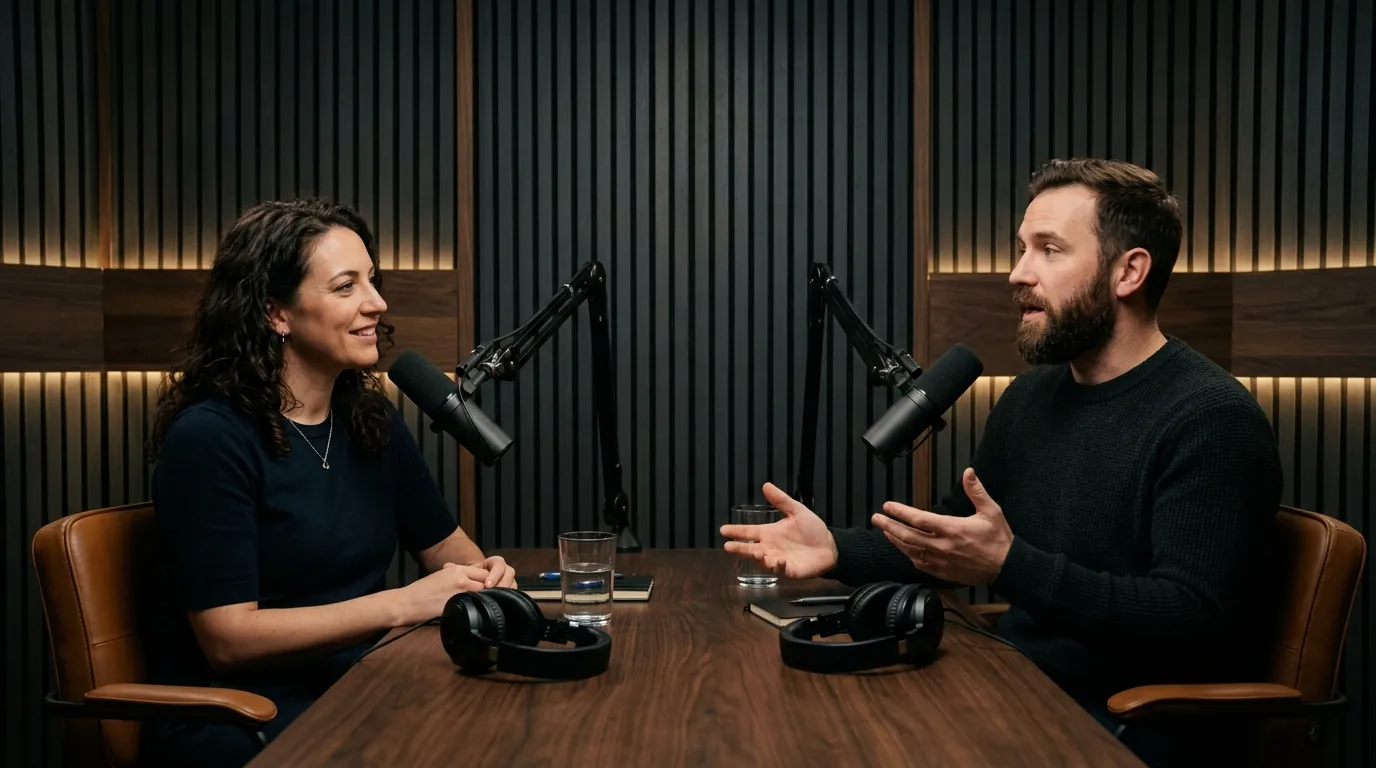
A single portrait crop can leave the listener out. In the playable podcast example, a stacked layout keeps both faces visible during dialogue.
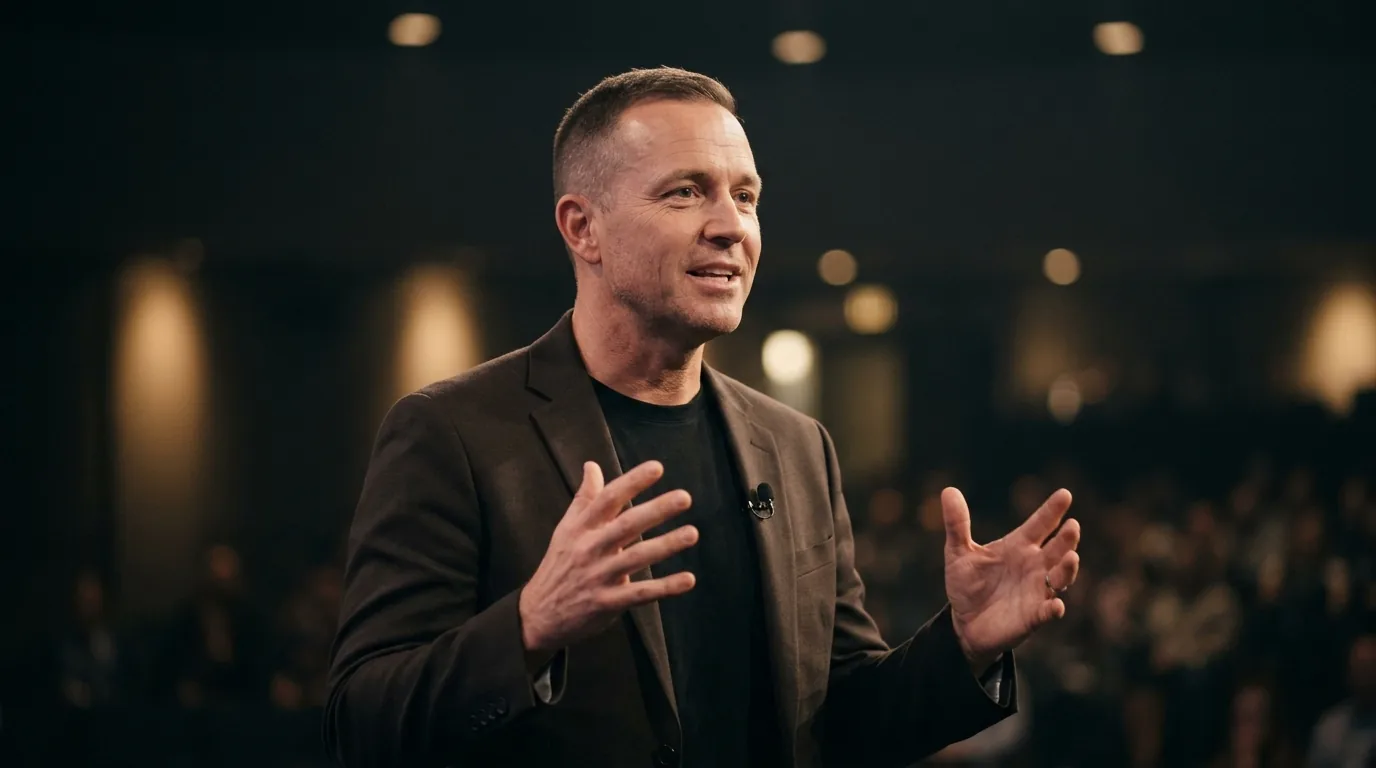
Use the stage still to check the crop around raised hands. For a moving presenter, preview the whole clip at each cut before posting.
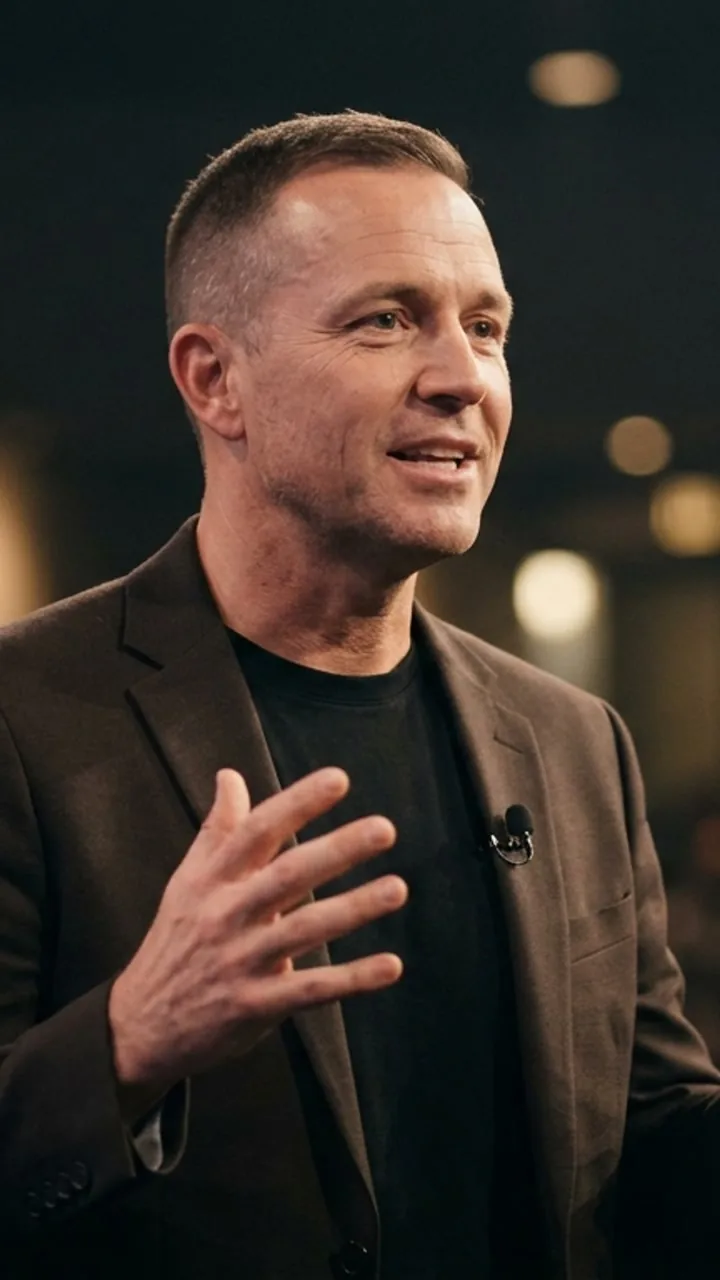
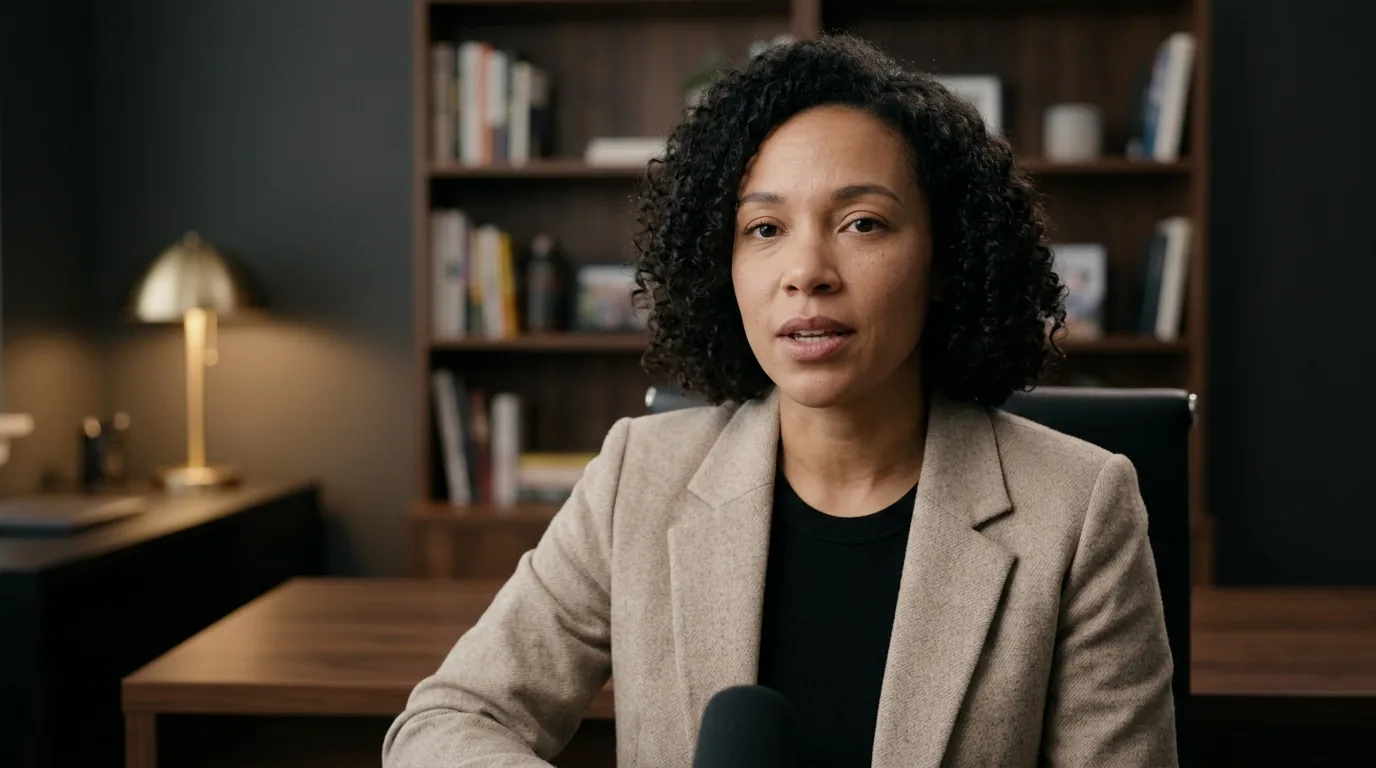
Need to resize video for Instagram feed posts or LinkedIn thought leadership? Selecting 1:1 square preserves posture, desk context, and warm office depth while filling mobile feed width cleanly.
Every platform penalizes tiny letterboxed landscape videos in vertical feeds. Here is how creators use automatic reframing to multiply distribution from footage they already filmed once.
Creators film horizontal YouTube tutorials for desktop viewers but need vertical video to reach new audiences on Shorts and TikTok. Automatic speaker tracking eliminates manual keyframing in Premiere or After Effects.
Social managers repurposing founder webinars or customer stories can export 9:16 for Reels and 1:1 square for LinkedIn and Instagram Feed without maintaining separate project timelines for every aspect ratio.
Wide studio podcasts and Twitch/Kick layouts break under basic cropping. Our layout engine detects multiple faces and gameplay overlays to produce clean vertical splits or crisp 16:9 highlight exports.
Use this browser-based vertical video editor to change aspect ratio video exports on cloud GPUs—no desktop software, manual keyframes, or quality-killing re-uploads.
Choose a local MP4, MOV, MKV, WebM or AVI file (MP4/MOV up to 5 GiB for trimming, 3 GiB upload limit), or paste a public video link and select up to 60 minutes from anywhere on its timeline.
Your pre-selected ratio carries over automatically. Combine smart reframing with optional synced captions or toggle captions off for clean footage.
Play the clip to check faces, hands and slides. Download it within 7 days to keep a copy.
Find an aspect ratio for your clips, frame a two-person interview and export an MP4 for your platform.
Upload a recording or paste its link, then select 9:16. Request 1–10 highlights with a target duration of 5–180 seconds each. The resizer exports the clips in your chosen format.
Choose full-screen 9:16 (prioritizing 1080×1920) for Reels or square 1:1 (prioritizing 1080×1080) for feed posts. All exports are delivered as clean, watermark-free MP4 files.
Play the source and vertical sample side by side. The stacked layout keeps the speaker and listener visible as the conversation changes hands.
Choose 16:9 landscape to give slides, software interfaces and on-screen text more horizontal space. Preview the framing in the workspace before downloading your MP4.
Export in 9:16 vertical, 1:1 square, 16:9 landscape, or automatic framing. Output resolution automatically prioritizes 1080p HD (matched to your source quality) with no watermark.
Public links from YouTube, Twitch, Kick, TikTok, Instagram, X and Vimeo can be any length. Choose up to 60 minutes per job. Local MP4, MOV, MKV, WebM and AVI files can be up to 180 minutes (clip up to 60 minutes per job), with MP4/MOV sources up to 5 GiB for in-browser trimming and a 3 GiB upload limit.
Yes. Play the synchronized comparison on this page. For your own recording, the workspace shows the credit quote before submission.
Yes. Enable auto captions when choosing a frame, then pick a style and position. Both settings apply to the exported MP4.
Use the same recording to explore highlights, subtitles and framing. Your workspace shows the quote before each run.
Automatically cut 1–10 viral Shorts from long YouTube videos, podcasts, and livestreams.
All AI Video ToolsCompare every live tool side by side by input source, task goal, and export format.
Auto CaptionsCompare Default, Bold and Clean subtitles and choose where they sit in the frame.
Free AI ClippingClip your first videos with free signup credits—no watermark, no card, full captions and reframing.
Upload a recording or paste a supported link, then check the aspect ratio and credit quote in your workspace.
9:16 · 1:1 · 16:9 · Auto · Active speaker tracking included