Review one MP4 before you publish
Set captions and aspect ratio in the same run. Open the exported clip to check text, framing and detail before downloading.
Start with the part of the edit you need. Choose AI clipping tools for highlights, auto captions for spoken lines, or the video resizer for a new frame.
Choose a task to see its input, output and settings. You can preview sample clips before choosing your own recording.
Our flagship AI clip generator for spoken long-form videos. Upload a podcast, interview, webinar, or YouTube link to isolate complete hooks, track speakers, and burn synced captions in one cloud GPU pass.
Generate synced, high-legibility subtitles on extracted short clips automatically. Compare Default, Bold (Hormozi), and Clean presets across 4 mobile-safe positions for TikTok, Shorts, and Reels.
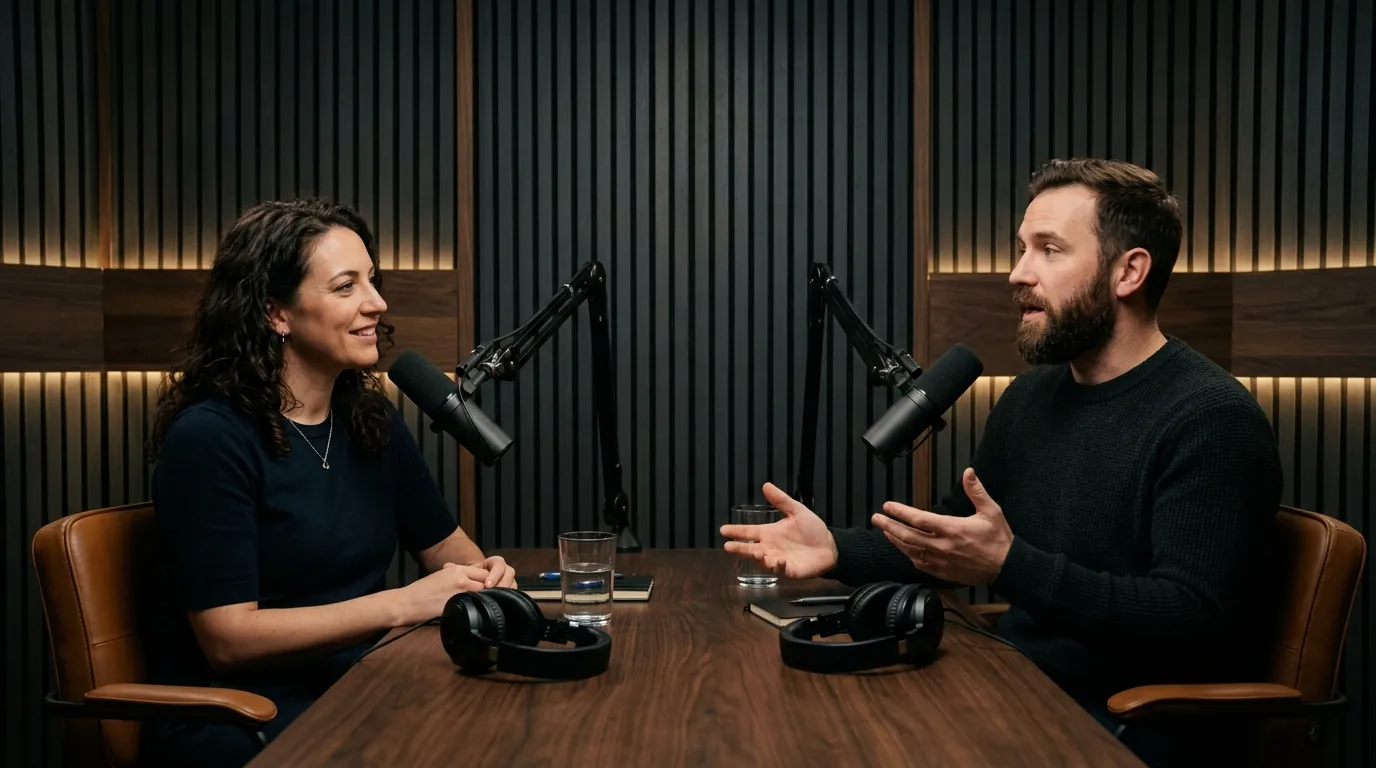
Compare a 16:9 interview with its 9:16 split-screen export. Choose vertical, square, landscape or Auto for your own clips.
Turn long videos into vertical Shorts using free signup credits. Estimate your processing cost upfront and export watermark-free HD MP4s with captions.
Creators searching for AI video tools usually arrive with one immediate bottleneck—either finding good moments in a long recording, making clips readable on mute, or fixing horizontal framing for vertical feeds. Use this decision matrix to jump straight to the entry point built for your bottleneck.
| Your Starting Footage | Primary Problem to Solve | Recommended Tool | Suggested Output Spec |
|---|---|---|---|
| 1-hour podcast or interviewYouTube URL or local MP4/MOV | Need 5–10 complete Q&A clips without watching the whole episode again | Open AI Clipping → | 9:16 Vertical · 30–60s · Auto Captions On |
| Talking-head tutorial or explainerA recording with clear speech | Viewers scroll on mute; captions get hidden behind TikTok or Shorts UI | Open Auto Captions → | Bold or Clean style · Auto or Middle safe zone |
| 16:9 YouTube video or stream VODMoving speaker, dual hosts, or facecam | Simple center cropping cuts off faces, hand gestures, or second guests | Open Video Resizer → | 9:16 Speaker Track / Split, or 1:1 for feeds |
| First trial before committingTest with free signup credits first | Run a real clip from your own recording, verify highlight quality, reframing and captions before paying | Start clipping free → | No card · Watermark-free HD MP4 |
Chaining three single-purpose web utilities—downloading from one site, uploading to a resizer, then re-uploading to a subtitle tool—wastes bandwidth, degrades H.264 quality through repeated re-encoding, and doubles production time.
Set captions and aspect ratio in the same run. Open the exported clip to check text, framing and detail before downloading.
Auto captions and reframing use the same credit balance as the main AI clip generator. Review the quote before submitting. If a job ends without delivery, its reserved credits return to your balance.
Podcasters use split-screen framing for two-host banter; educators use Clean captions for webinars; livestreamers pick 60-minute windows inside 3-hour VODs; marketing teams buy non-expiring credit packs for predictable batch delivery.
Common questions about picking the right tool, shared credits, supported sources, and current workflow scope.
No. Every tool in the ClipNectar AI video tools suite runs inside your web browser and renders on cloud NVIDIA GPUs. Speech recognition, highlight detection, face tracking, and subtitle burning are built in—no local installs or external API keys required.
Yes. Pick an aspect ratio and captions in one run for up to 10 MP4 clips (split longer videos into batches for 15–20+ clips). Built for extracted shorts—not standalone full-length edits, prompt filtering, or XML exports.
Choose AI Clipping in the directory. Upload your recording or paste a supported link, then set the clip count and length in the workspace.
Yes. Captions, framing and highlight selection use the same account balance. The workspace gives you a quote before you submit a recording.
Public links from YouTube, Twitch, Kick, TikTok, Instagram, X and Vimeo can be any length. Choose up to 60 minutes per job. Local MP4, MOV, MKV, WebM and AVI files can be up to 180 minutes (clip up to 60 minutes per job), with MP4/MOV sources up to 5 GiB for in-browser trimming and a 3 GiB upload limit.
Open Video Resizer for a synchronized original-and-export comparison and the size guide. The directory also links to Auto Captions for caption style samples.
Open the AI clipper for highlights or choose a tool above to preview captions and aspect ratios first.
Choose a recording · Review the quote · Download your clips