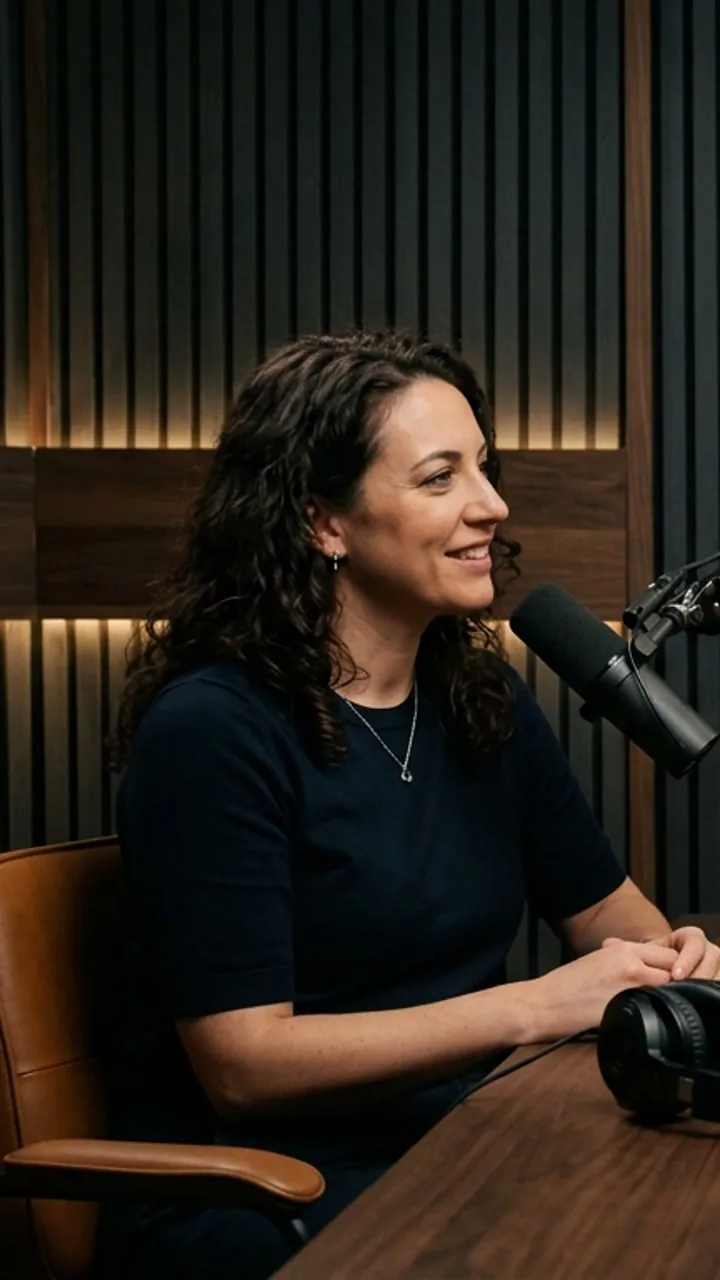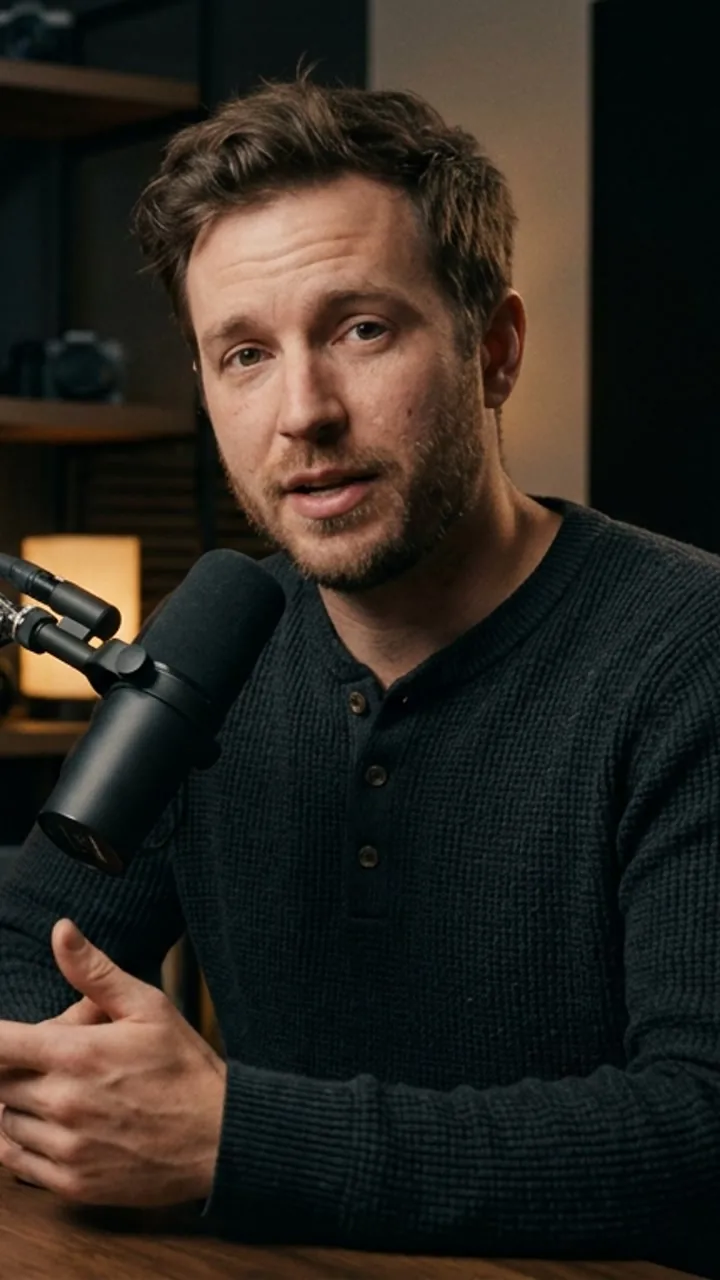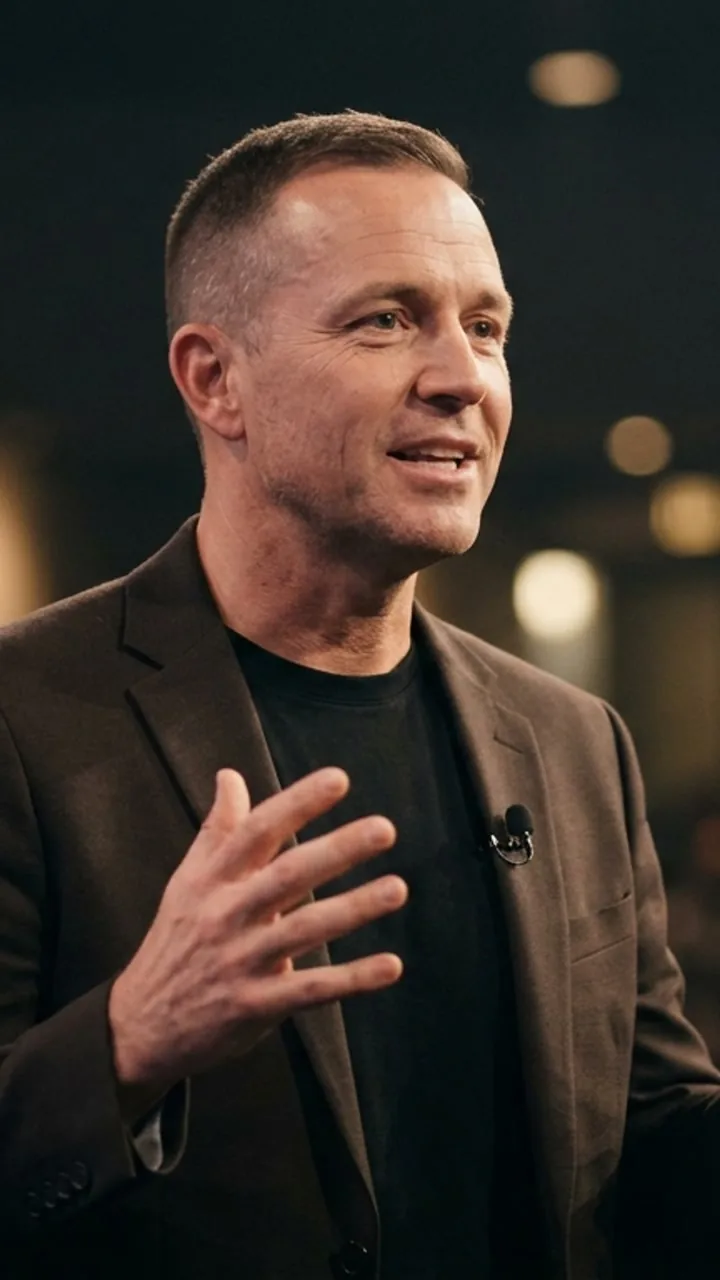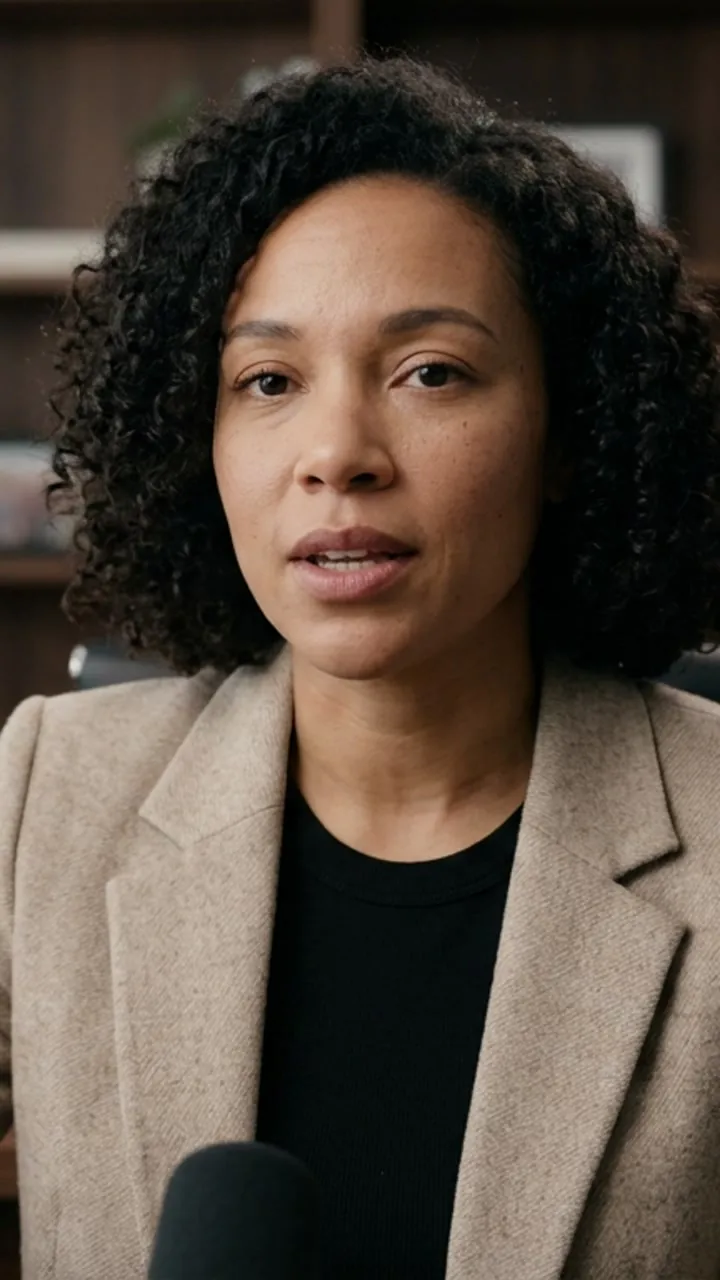
Default
The active word turns yellow within an outlined uppercase phrase.
Extract highlights from interviews, tutorials or podcasts and add synced captions to each MP4 clip. Choose a style and position for Shorts, TikTok or Reels.
Preview a public video of any length, then select up to 60 minutes to clip.
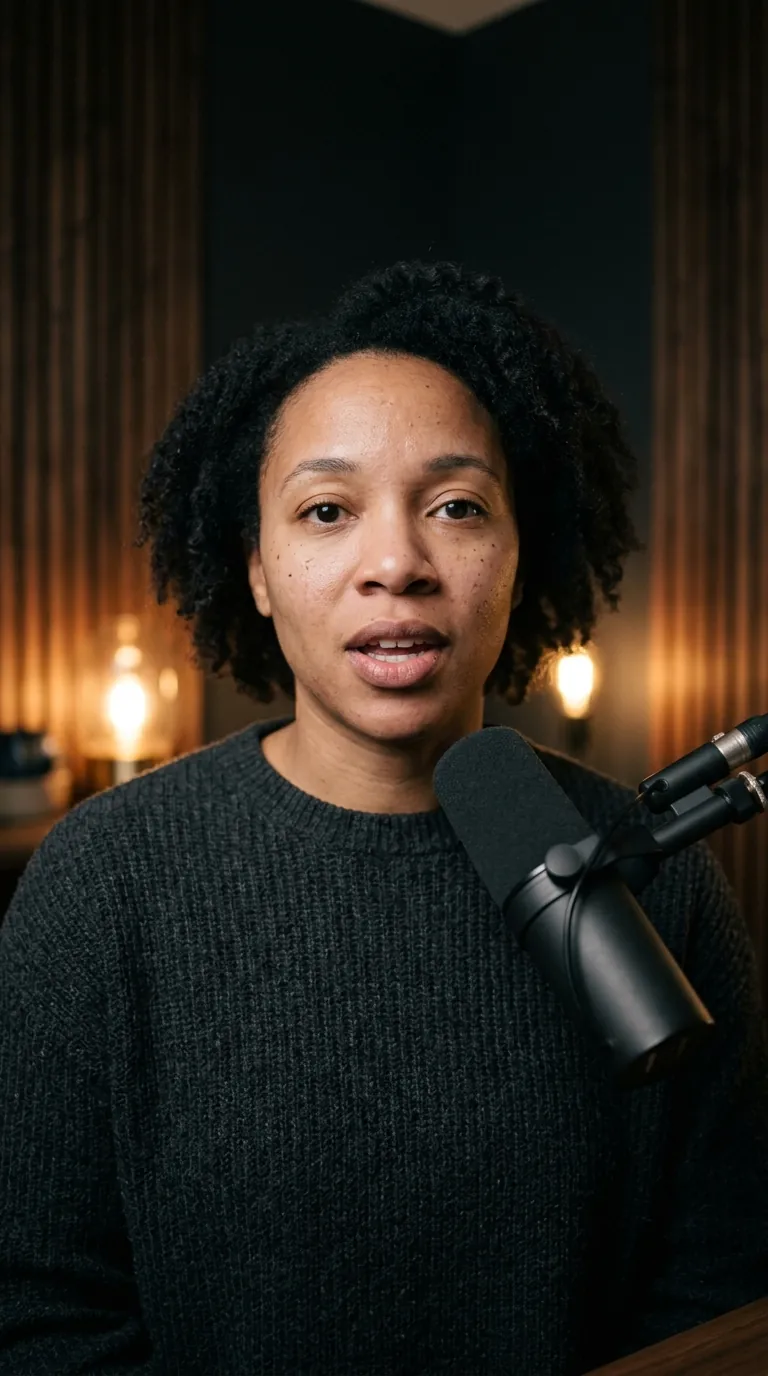
These six seconds come from our interview sample. Each vertical MP4 uses the same audio, word timings and crop, rendered locally with the clipping worker’s subtitle presets.
Listen for “low moments” and watch when each word appears or changes color.
Compare the outline, weight and space the text occupies on the same background.
The active word turns yellow within an outlined uppercase phrase.
Bold words appear as they are spoken, with a yellow highlight and shadow.
Smaller sentence-case text uses a soft shadow and no heavy outline.
When you add captions to video for short-form feeds, poor vertical placement is the #1 reason subtitles fail. Each social app reserves different screen margins for titles, usernames, and action icons—match your preset to where you publish.
| Target Platform | Blocked UI Area | Recommended Position | Best Style Preset | Why It Works |
|---|---|---|---|---|
| TikTok9:16 Vertical Feed | Bottom ~20% (caption & audio) + right 16% (like/share stack) | Auto / Middle | Bold (Hormozi) | Keeps punchy 2–4 word chunks centered above descriptions and away from right-edge buttons. |
| YouTube Shorts9:16 Vertical Feed | Bottom ~18% (channel + title) + right action rail | Auto / Bottom | Default or Bold | Balances clear readability with clean framing for tutorials, commentary, and podcast clips. |
| Instagram Reels9:16 + 4:5 Profile Grid | Bottom ~20% in Reels player; top/bottom cropped in profile grid | Middle / Auto | Clean or Default | Center-safe placement ensures auto subtitles stay visible both in Reels and feed previews. |
| LinkedIn & Courses1:1 Square or 16:9 | Thin bottom scrub bar during playback | Bottom / Top | Clean | Dark translucent caption backing feels editorial and professional for B2B talks and webinars. |
Whether you need AI captions to hook muted mobile viewers or fast auto subtitles to replace manual transcription, our video caption generator solves three concrete publishing bottlenecks.
Commuters, office browsers, and late-night scrollers routinely watch Shorts and Reels with sound off. Burned-in AI subtitles deliver your opening hook visually in the first two seconds so viewers stop scrolling and unmute instead of swiping away.
The subtitle generator detects spoken language automatically and renders synced AI subtitles and auto subtitles for each clip. It is fully tuned for English, major European languages, Simplified Chinese, Japanese and Korean, and also supports Arabic, Hebrew, Hindi, Thai and Bengali—just preview line breaks before posting.
Apply one caption style to a batch of clips. Preview each result in the workspace and download the MP4 with its captions already in place.
Add subtitles to video highlights from a podcast or add captions to video tutorials. Choose a short passage, set a style and review the exported text.
Choose a local MP4, MOV, MKV, WebM or AVI file (MP4/MOV up to 5 GiB for trimming, 3 GiB upload limit), or paste a public video link and select up to 60 minutes from anywhere on its timeline.
Your chosen style (Default, Bold, or Clean) and safe-zone position carry straight into the workspace. Adjust clip count (1–10), length (5–180s), and review the exact credit quote.
Open the finished MP4, listen for names and sentence breaks, and download the clips you want to keep within 7 days.
Explore speech detection, caption styles, placement and MP4 exports.
Request 1–10 highlights from a recording and choose a target duration of 5–180 seconds per clip. With auto captions enabled, each exported MP4 includes synced subtitles.
Speech language is detected automatically—no manual picker needed. Captions are fully optimized for English, major European languages (such as Spanish, French, German, Portuguese and Italian), Simplified Chinese, Japanese and Korean. Arabic and Hebrew (right-to-left) as well as Hindi, Thai and Bengali are also supported; we recommend previewing line breaks, text direction and active-word highlights before publishing.
Captions burn directly into the MP4 (no standalone SRT/VTT download or word-level web editor). To edit subtitles in Premiere or DaVinci, switch captions off before generating for clean MP4 clips.
In the workspace, you can choose caption position (Auto, Top, Middle, or Bottom) to avoid overlapping existing lower-thirds or source subtitles, or toggle captions off when your original footage already carries readable text.
Try Bold in a fast-paced clip or Clean on a quieter interview. Preview with the platform controls visible and move the captions if faces or text are obscured.
Play all three subtitle samples for free. To try your recording, check the signup allowance on the free clipping page or your available balance in the workspace.
Public links from YouTube, Twitch, Kick, TikTok, Instagram, X and Vimeo can be any length. Choose up to 60 minutes per job. Local MP4, MOV, MKV, WebM and AVI files can be up to 180 minutes (clip up to 60 minutes per job), with MP4/MOV sources up to 5 GiB for in-browser trimming and a 3 GiB upload limit.
Try the style and position controls at the top of the page, then play the three MP4 samples to compare size, emphasis and timing on the same spoken line.
Use the same recording to explore highlights, subtitles and framing. Your workspace shows the quote before each run.
Automatically cut 1–10 viral Shorts from long YouTube videos, podcasts, and livestreams.
All AI Video ToolsCompare every live tool side by side by input source, task goal, and export format.
Video ResizerReframe widescreen 16:9 recordings into 9:16, 1:1, or 16:9 with active speaker tracking.
Free AI ClippingClip your first videos with free signup credits—no watermark, no card, full captions and reframing.
Upload a spoken recording or paste a supported link to add Default, Bold or Clean AI captions to extracted clips.
Choose a style · Set placement · Review the MP4